Smoothie Drivers for Windows
If you run Windows, you may need to install drivers to use the virtual serial over USB interface. Driver requirements depend on both your Windows version and which Smoothieware version you're using.
Smoothieware V1 uses a standard virtual serial port (CDC/ACM) over USB. Continue reading to determine the correct drivers for your Windows version and v1 hardware.
Smoothieware V2 also uses a standard virtual serial port (CDC/ACM) over USB, and uses the same driver compatibility as V1. Windows 10 and later automatically recognize V2's composite USB device without additional drivers.
Windows 10 and Later
Installers Windows 2000 through Windows 8
- Windows 2000/Vista/7/8 (64bit/32bit): smoothieware-usb-driver-v1.1.exe
These drivers are for Smoothieware V1 hardware only.
For Smoothieware V2, driver support is generally better on modern Windows versions. If using Windows 10 or later, no drivers are needed. For older Windows versions with V2 hardware, the V1 drivers above may work, though V2 should ideally be used with modern operating systems.
Using the Installers
Download the installer and run it. After that, Smoothieboard’s USB serial should be recognized automatically.
What’s New in v1.1
- Support for second USB serial port (not compatible with having USB mass storage disabled)
- Removed the “!” from the Smoothie DFU device in Windows Device Manager
Driver Files
For manual installation:
- Windows 2000/Vista/7/8 (64bit/32bit): smoothieware-windows-signeddriver-v1.1.zip
- Windows 8.1: smoothieware-windows-signeddriver-v1.0.zip
How to Install the Driver Files Manually
This is just in case the installer doesn’t work, or one is running Vista. The installer is new and has not received much testing.
If it didn’t work for you, please contact us.
Step 1: Download and Extract
Download the driver files zip and unzip it somewhere. You can use whatever you like so long as you remember it later.
The Smoothie SD card might be a convenient place in case you end up needing the driver in the future.
Step 2: Open Device Manager
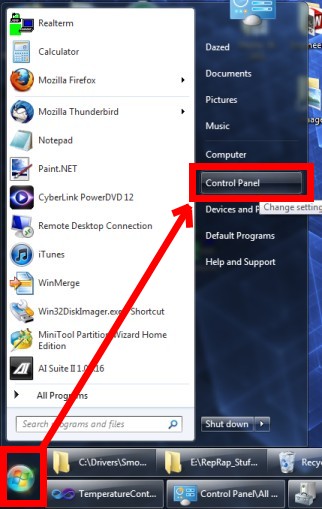
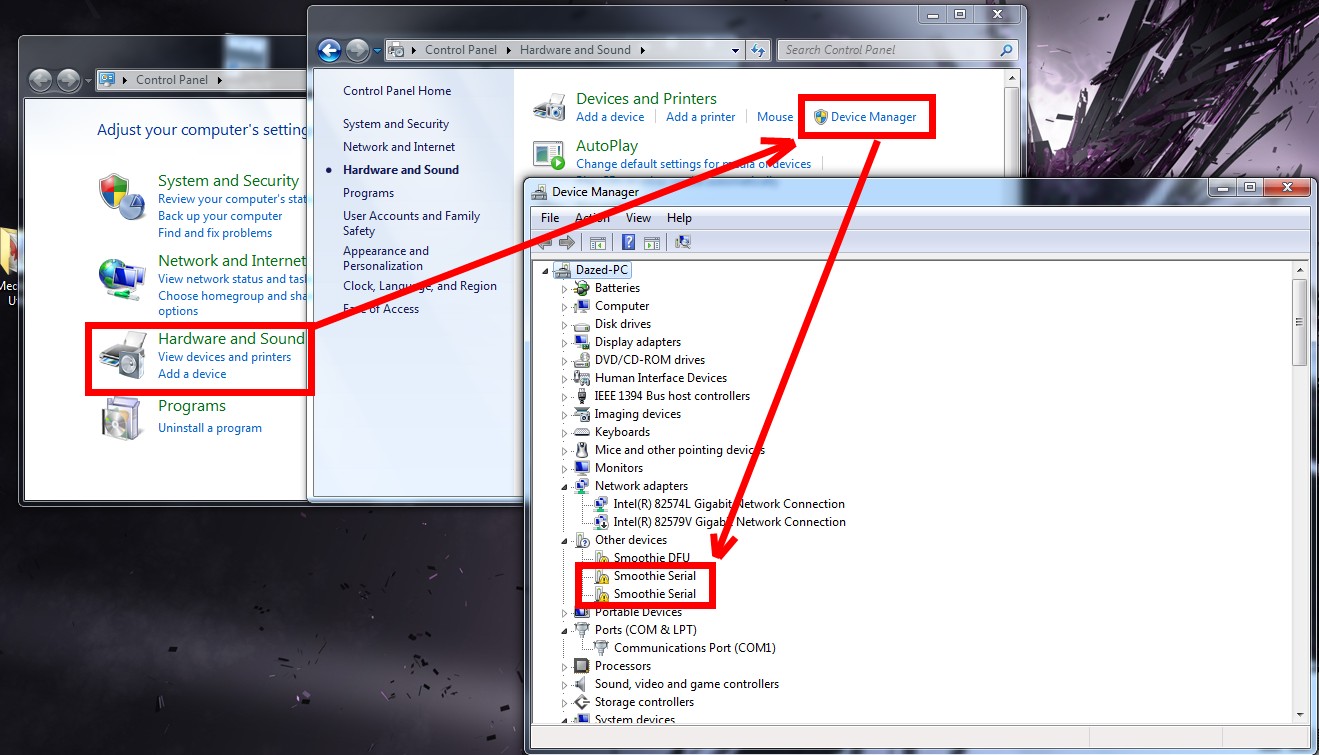
Click the “start” button and pull up the control panel. From there, we want to open the device manager.
Step 3: Locate the Device
Now we need to locate the device to install. If you are using an old firmware, you may find an unknown “CDCMSC DEVICE”.
If you are using a recent version of Smoothieware, you may find up to two “Smoothie Serial” devices.
Here is an example of what you might see on recent firmware:
Step 4: Update Driver Software
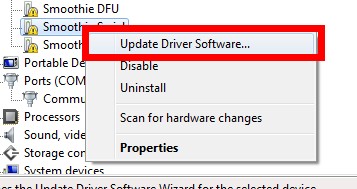
Right-click the first one and select “Update Driver Software”
Step 5: Locate the Driver
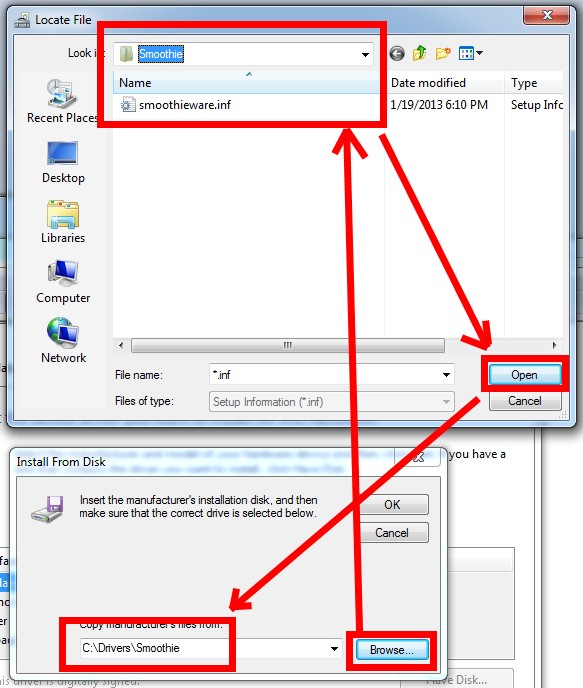
Find where you unzipped the driver to
Step 6: Verify Installation
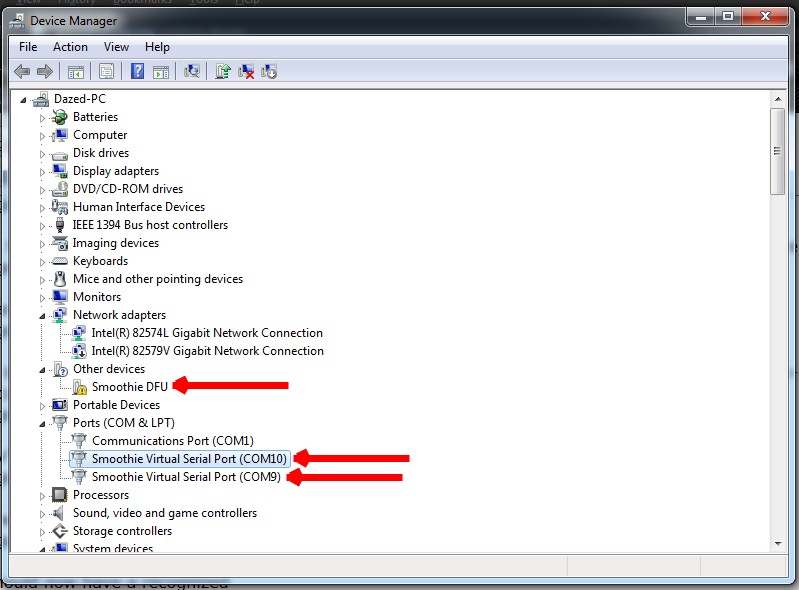
You should now have a recognized “Smoothie Virtual Serial Port”.
You might have two of them if that option is enabled in the config. Note that your COM ports might be different numbers (mine are 9 and 10).
The port numbering can be changed through the advanced port properties, but you shouldn’t really need to do that.
Also, note that “smoothie DFU” is still unrecognized. This is fine. You can ignore that.
Does None of This Work for You?
There are some Windows machines that do not seem to like any of these drivers. These problems do not seem tied to a specific version of Windows.
In order to find the cause, we would appreciate submissions of hardware information from affected machines.
If you have a machine that does not like these drivers, please complete the steps found on the How to submit Windows System Information page.
Hopefully, this will help us identify a pattern to the problem which could help us come up with a solution.